

EZSign
Simple Electronic Signature Capture for Salesforce®
About the Solution
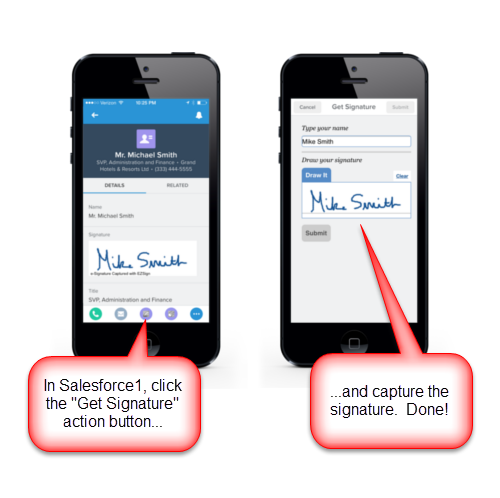
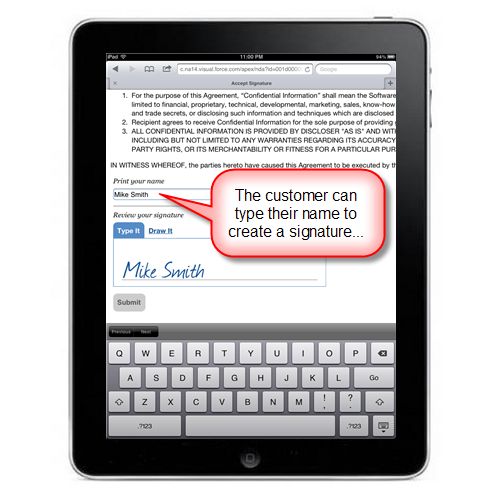
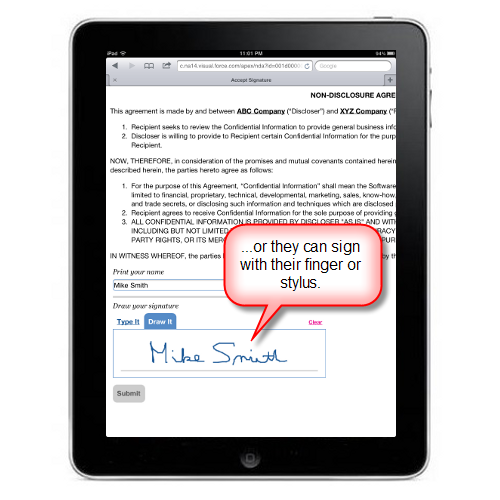
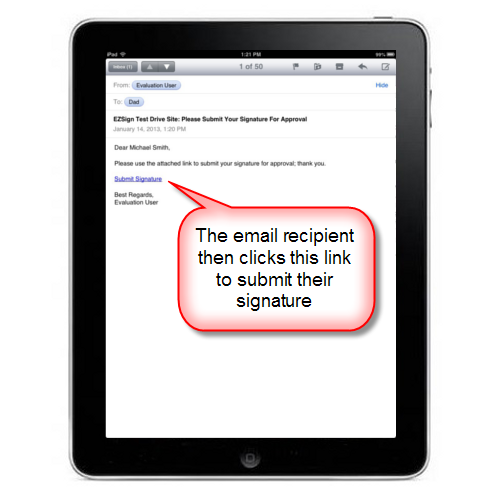
EZSign enables users to quickly and easily capture e-signatures right on their phone with the Salesforce® Mobile app, on a tablet with the Salesforce® desktop application, or remotely via email. The app is ideal for users wishing to get customer signatures for quotes, invoices, work orders, legal paperwork, or any document that requires sign-off. All signatures may be entered using a finger/stylus or by typing into a text box and are automatically time-stamped for reporting.
The EZSign component can be embedded into any Visualforce page wherever an e-signature is required. EZSign also works with all standard and custom objects in Salesforce® so you can have it
appear wherever you want without doing a lot of configuration.
Once a signature has been captured, it's then automatically saved as a .PNG image attachment to the record so it can be included in email templates or imported into other documents like Word or PDF files.
Unlike other e-signature apps, EZSign eliminates the headache of sending, tracking, and managing your documents with a single line of code in a Visualforce Page:
                                <apex:page standardController="Contact" >

                                <EZSign:getSignature />

                                </apex:page>
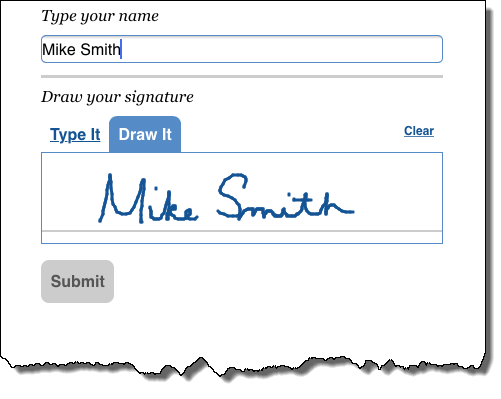
Create as many signatures as you wish per record (e.g., Signer & Co-signer) and have EZSign automatically generate a PDF of the signed document so it can be printed or emailed to your customer.
EZSign supports all major languages and is compatible with all editions of Salesforce® and the Salesforce® Mobile app with no third-party licensing required.



Pricing
Initial 10-day free trial period included. No charge incurred for sandbox installations. Half-off advertised pricing for all non-profit organizations.
| # of Users | $ USD per User per Month |
| 1-9 | $10 |
| 10-24 | $9 |
| 25+ | Contact Us |
NOTE: Only users needing to capture signatures, either directly within Salesforce® or remotely via email, need to have an EZSign license. Once a signature has been captured, it can be viewed by other Salesforce® users that do not have a license. Also, an additional license will need to be purchased if you intend to capture signatures remotely via email.














-

Shell
Black
We were asked to evaluate this solution for one of our clients. The app does what it claims: straight-up, simple signature capture. Sign with a mouse or on a tablet. We also found that you can create a printed document with the signature graphic using Conga Composer by leveraging the IMAGE: tag in the mail merge field.
-

Rodrigo
Sakakibara
I was looking for a simple way to eliminate paper on my company operations and was not happy when I found that there was a lot of end user signature in a lot of documents required by my customer's managers. After making a extensive research on the web I found this product and I used for a few days. It was amazing how simple was to to use. Besides I had an issue with a requirement additional configuration and after asking help, I received the immediate support from the entire team. After that they guide me step-by-step and I got the requirements implemented at the same time. Now I am completely confortable to start the migration of all my processes that require signature and I my customers are very happy with my system. More than a product, It is important to have companies that are available for our needs and for this reason I do recommend this product!
-

Kris
Carlson
This app was the perfect solution we needed for a basic digital signature application. It has worked flawlessly and the customer support by the EZsign folks is unmatched! If you need a digital signature application, I highly recommend this product!
Documentation
Select from the following items to learn more about EZSign and how to customize it to suit your needs:
Component Attributes
The following attributes can be used to customize the look-and-feel of the EZSign component:
| Attribute | Type | Description | Default Value |
| W | Integer | Signature Box Width (in pixels) | 400 |
| H | Integer | Signature Box Height (in pixels) | 90 |
| createExternalImage | Boolean | If TRUE, the signature is stored as an externally available image to be used in email templates. If FALSE, the signature will be available only to your internal Salesforce® users. | FALSE |
| returnToRecord | Boolean | If TRUE, the user is redirected to the record. If FALSE, the page will simply refresh and display the submitted signature. | TRUE |
| defaultAction | String | Default Action | typeIt, drawIt |
| typeOnly | Boolean | Type It Only | FALSE |
| drawOnly | Boolean | Draw It Only | FALSE |
| bgColour | String | Background Color | white |
| penColour | String | Pen Color | #145394 (Blue) |
| penWidth2 | String | Pen Width (in pixels) | 3 |
| lineColour | String | Signature Line Color | #ccc (Gray) |
| lineWidth | Integer | Signature Line Width (in pixels) | 2 |
| lineMargin2 | Integer | Signature Line Margin (in pixels) | 0 |
| lineTop | Integer | Signature Line Top (in pixels) | 78 |
| saveLine | Boolean | If TRUE the signature line will be saved along with the stored signature. If FALSE, the stored signature will be saved without the signature line. | FALSE |
| multipleSignatures | Boolean | Determines if multiple signatures are to be stored for each record. If TRUE, the signature input form will always be displayed. | FALSE |
| requireName | Boolean | Require that the "Name" field be entered | TRUE |
| requireDraw | Boolean | Require that a drawn signature be entered | FALSE |
| displaySigInfo | Boolean | Display name and date below captured signature image | TRUE |
| displayDeviceInfo | Boolean | Display IP address, operating system, and browser info of the signer below captured signature image | FALSE |
| displaySignature Key | Boolean | Display the encrypted Signature Key when capturing singnatures remotely via email | FALSE |
| onClickFunction | String | The name of the JavaScript function to run after the Submit button is pressed but BEFORE the signature has been captured. Useful for field validation before a signautre has been captured. | |
| saveFunction | String | The name of the JavaScript function to run after the Submit button is pressed and AFTER the signature has been captured. Useful for redirection after a signautre has been captured. | |
| redirectURL | String | The URL to redirect to after a signature is submitted for both Mobile and Desktop use. Can contain Salesforce® variables. | |
| createPDFAttachment | Boolean | If TRUE, the entire Visualforce page containing EZSign will added to the record as a PDF attachment. Does not work with Remote Signature Capture and Sites, however. | FALSE |
| sigName | String | The name of the signature being captured and stored. Used when multiple signatures are being captured. | |
| placeholderText | String | Placeholder text in an empty signature box (e.g., Sign Here). |